Define a software template
A software template is the default set of software versions that every CID connected to a registered OpenLab Server uses. The template covers the OpenLab CDS version, the Windows and Linux updates, the instrument drivers, and any add-on software. This page is for the lab administrator or IT operator who sets that default. The same template applies to every CID on the server, unless a specific CID is configured with an exception (see Configure software exceptions).
A software template is not a server-side configuration. It lives in CID Hub and is read by each CID. The OpenLab Server does not use it, does not install or hold any of the software listed in it, and is not aware that the template exists.
Prerequisites
Before you define a software template, confirm these prerequisites.
- You must have an administrator role to define a software template.
- You need a registered OpenLab Server.
- You need to know the OpenLab CDS version installed on the OpenLab Server. (The server's version must be equal to or higher than the versions running on connected clients or CIDs.)
- You need to know the OpenLab CDS, driver, and add-on versions installed on the CDS Client systems. (The versions you select must match the client versions exactly.)
Open the server's software template
To open the template:
-
In CID Hub, click OpenLab Servers in the top navigation bar.
-
Click the row for the server whose template you want to define.
-
Select the CID Software tab.
The tab lists the OpenLab CDS version, the Windows and Linux updates, and the drivers and add-ons that make up the template, each with a Change button.
When a server is first registered, the template starts with the latest available OpenLab CDS version and its compatible default OS updates and drivers. You only need to edit the template if you want different versions.
Select the OpenLab CDS version
The OpenLab CDS version is the anchor of the template. It sets the default Windows update, Linux update, and driver versions for the rest of the template.
To change the CDS version:
-
Next to OpenLab CDS, click Change.
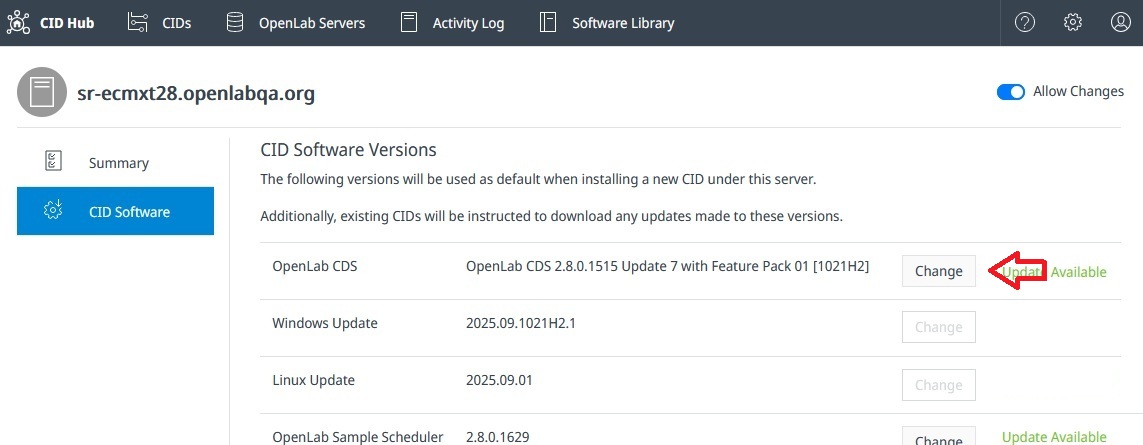
The CDS version dialog lists the selectable versions for the server template.
-
Select a version.
-
Click Save.
A warning appears before CID Hub commits the change. Confirm to apply it.
Changing the CDS version resets the rest of the template. The Windows update and Linux update reset to the latest available updates for the new CDS version, and the driver and add-on versions reset to the defaults that ship with that CDS version. Reselect any specific versions you need after changing CDS.
Beyond the cascade within the template, the chosen CDS version also has to align with the rest of the OpenLab CDS environment.
Do not select a CDS version that does not match the CDS version installed on the CDS Client systems that connect to these CIDs. If you do, functional issues can occur between a CDS Client and the Analytical Instrument Controller (AIC) or CID it connects to. Do not select a version that is higher than the OpenLab Server version. Coordinate any CDS version change with the rest of the OpenLab CDS environment before applying it.
If only one CDS version is available, the Change button is disabled.
Operating system updates
Operating system update selection is largely automatic and rarely needs your attention. CID Hub only keeps the latest active Windows update and the latest active Linux update selectable. Most of the time only one of each is available, so the Change button for Windows Update and Linux Update is disabled and the latest active version is shown as selected. CID Hub also re-selects the latest active update when the CDS version changes or when the currently selected update is retired.
If more than one selectable version is present, you can change the selected update.
To change a Windows or Linux update:
-
Next to Windows Update or Linux Update, click Change.
-
Select a version.
-
Click Save.
Select drivers and add-on software
The driver list shows only the instrument drivers and add-ons that are compatible with the selected CDS version. Each row shows the version that will be applied to CIDs.
- Mandatory drivers. These are preselected with the default version that ships with the chosen CDS version. They cannot be deselected.
- Optional drivers and add-ons. These are not installed by default and show Not Installed. The version picker for an optional driver or add-on includes Not Installed as a selectable option alongside the available versions. Selecting it leaves the component uninstalled, or removes it from CIDs that already have it.
To change a driver or add-on version, or to remove an optional one:
-
Next to the driver or add-on, click Change.
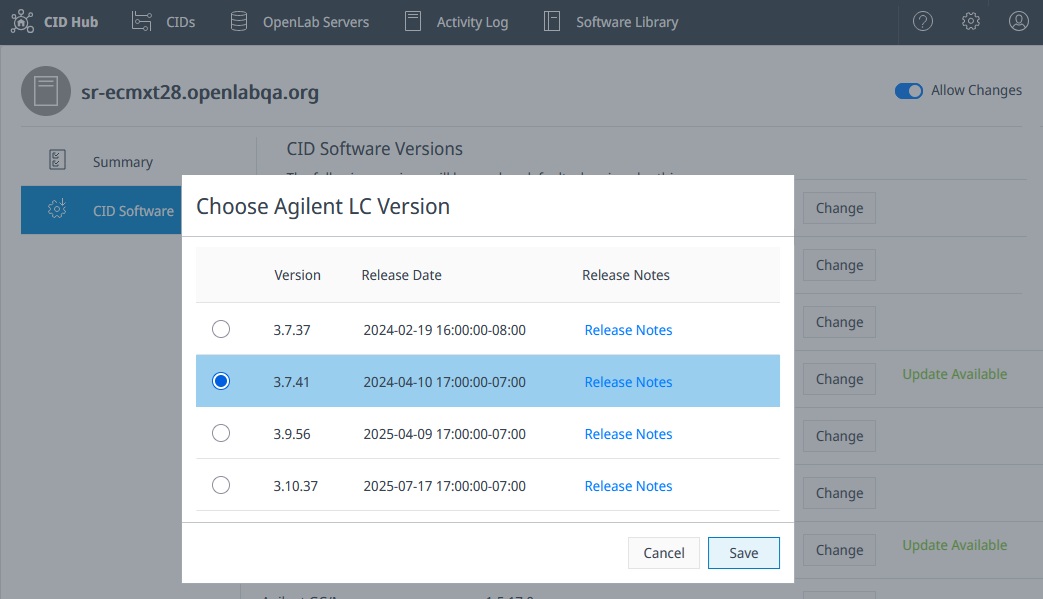
The driver selection dialog shows only versions that are compatible with the selected CDS version.
-
Select a version, or select Not Installed for an optional driver or add-on.
-
Click Save.
An Update Available badge appears next to a component when a newer compatible version is available in CID Hub. For OpenLab CDS, only newer versions within the same release train are flagged this way; a jump across major versions is treated as a deliberate CDS change, not as an available update.
Do not select driver or add-on versions that do not match the versions installed on the CDS Client systems that connect to these CIDs. If you do, OpenLab CDS does not function correctly. Coordinate any change with the rest of the OpenLab CDS environment before applying it.
What happens next
Once the template is saved, every CID on this server that is set to inherit from the server compares the template against its currently installed software and queues any new components for download. Downloads start automatically. Installation does not. An administrator must trigger the install from the Apply Updates action on the CID's Software tab, or from the Apply Updates action on the CIDs list to install on several CIDs at once. See Apply updates for the full procedure.
See also
- Register an OpenLab Server: the prerequisite that creates the server record this template belongs to.
- Configure software exceptions: override the template for a specific CID.
- Apply updates: install software that CIDs have downloaded against the template.
- View software library: browse the CDS, OS update, driver, and add-on versions available in CID Hub.
- View activity logs: review the history of template changes.