Run OpenLab CDS in Failover mode
When a CID cannot reach its OpenLab Server, samples already running or queued on the CID continue to completion. Their data transfers to the Server once the connection is restored, and you do not need to do anything to keep that work running.
You need the Windows VM console only when you must submit or queue new samples during the outage. With the Server unreachable, the CDS Acquisition client cannot reach the instrument the normal way. Instead, you sign in to the CID's Windows VM console directly and operate OpenLab CDS Acquisition in Failover mode. This page walks you through accessing the console and starting CDS in failover.
You will work in two places: CID Hub (from any internet-connected device, including a phone) to retrieve the current Windows VM password, and the Windows VM console on the CID itself to run CDS.
Prerequisites
- You must be able to sign in to CID Hub and see the CID.
- You need to know which CID controls the instrument. If you do not, see Identify the CID.
- You need network access to the CID.
- You need Chrome or Edge to open the Windows VM console.
Identify the CID
Skip this section if you already know the CID name.
Once the OpenLab Server is unreachable, Control Panel cannot tell you which CID controls which instrument, so the mapping has to be available locally before an outage. Use whichever of the following you already have in place:
- A label on the instrument bench listing the CID's name and IP address.
- A naming scheme that ties each CID to its instrument (for example,
cid-1290lc-53for the 1290 LC at bench 53). CID hostnames are limited to 15 lowercase alphanumeric characters. - A printed Instrument Controllers Report or Instrument Report from Control Panel, kept near the bench. Reprint it whenever instruments are added, moved, or renamed so the copy on the bench stays current.
If DNS is unavailable on your network during the outage, you will also need the CID's IP address for the direct-URL method.
Retrieve the CDS Desktop password
The Windows VM password rotates automatically every 24 hours, so you must read the current value from CID Hub each time you start a failover session.
- Sign in to CID Hub. If lab computers cannot reach the internet during the outage, use a phone or any other internet-connected device.
- Open the CIDs list and select the CID you identified.
- In the sidebar, click Administration.
- Under CDS Desktop user, note the username and click the eye icon to reveal the password. Copy both; you will need them in a moment.
Open the Windows VM console
There are two ways to reach the console. Both end at the same Windows sign-in screen.
- From CID Hub. Preferred when the CID has lost its connection to the OpenLab Server but is still connected to CID Hub.
- From a direct URL. The fallback when the CID has also lost its connection to CID Hub.
From CID Hub
- On an internet-connected computer, open CID Hub in a browser.
- Open the CIDs list and select the CID. In the sidebar, click Administration.
- Click Launch CDS Desktop.
- Select how to reach the CID:
- Local: your computer is on the same corporate network as the CID (onsite or VPN). The console opens over a direct HTTPS connection to the CID.
- Remote: your computer is on a different network. CID Hub opens a tunneled session so the console is reachable from outside the corporate network.
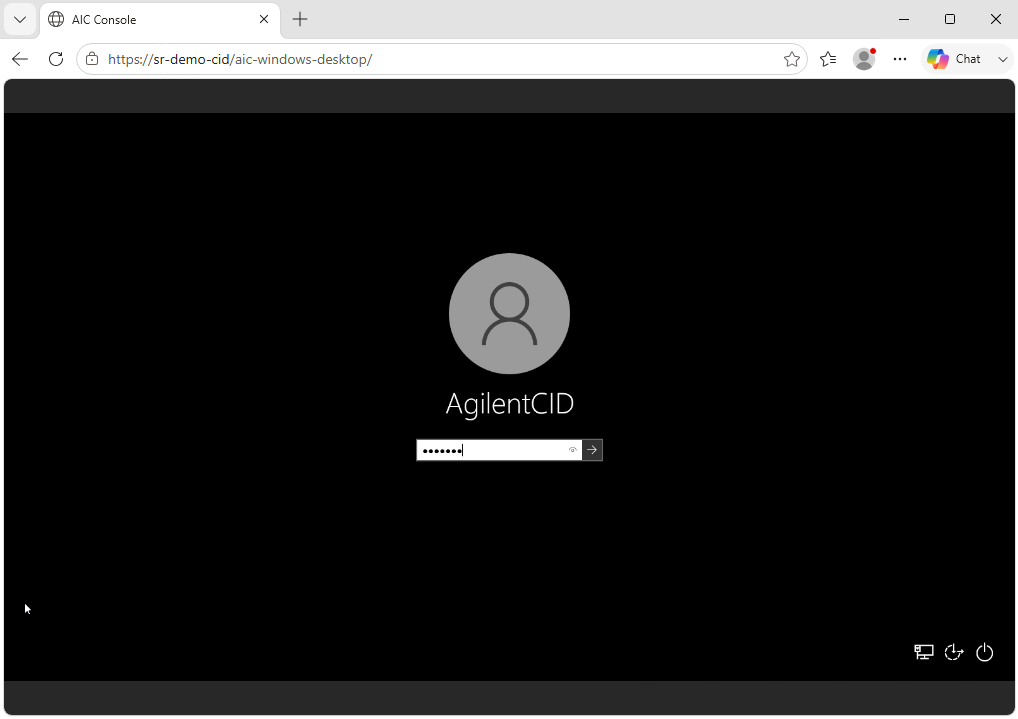
- The Windows sign-in screen opens in a new browser tab.
From a direct URL
The typical scenario is an internet outage that cuts off both the OpenLab Server (hosted in a data center) and CID Hub, while the lab LAN itself stays healthy. Instruments, CIDs, and bench PCs can still reach each other, so from a bench PC on that LAN you can go straight to the CID's console URL.
Since CID Hub is unreachable, the Retrieve the CDS Desktop password procedure will not work either. You will need the current password through some other route, such as a phone on cellular data or any other device that still has internet access.
- In Chrome or Edge, go to
https://<cid-name-or-ip>/aic-windows-desktop/. Use the CID's name if DNS resolves it, otherwise its IP address. - The Windows sign-in screen opens.
Sign in and start CDS in failover
- Sign in with the CDS Desktop user credentials you copied from the Administration tab.
- Launch Control Panel from the Windows desktop. Because the OpenLab Server is unreachable, Control Panel prompts you to switch to Failover mode. Accept the prompt.
- From Control Panel, launch OpenLab CDS Acquisition and continue your work.
Log out of Windows when you finish. If you close the browser tab instead, a missed keep-alive heartbeat logs you out automatically; samples already running or queued continue regardless. To return, launch the console again and sign in with the current credentials. Only one console session is active per CID at a time, so a new connection displaces any existing one. See the Windows VM console section of Remote access for the full session rules.
From this point on you are inside OpenLab CDS, not the CID. The Acquisition Failover Users Guide that ships with OpenLab CDS covers everything that happens next. It covers which methods and projects are available offline, restrictions on creating instruments or modifying settings, the (Q-)TOF Operational Continuity flow, audit-trail attribution for failover sessions, and how acquired results are returned to the Server. It is available from OpenLab CDS Help.
See also
- Administer a CID: retrieve credentials, restart services, and run recovery actions from the Administration tab.
- View activity logs: review the CID's recent activity around the outage.
- Remote access and support tunnels: how the tunneled Remote option to the Windows VM console is brokered and logged.