Configure network cards
Each CID has two physical Network Interface Cards (NICs): a Corporate NIC for traffic to your lab network, CID Hub, and the OpenLab Server, and an Instrument NIC for the isolated instrument network.
This page is for the lab administrator or IT operator who reconfigures a NIC from CID Hub. The Corporate NIC normally runs on DHCP; the Instrument NIC is commonly set to a static IP so that the CID and the directly connected instruments share a subnet.
Prerequisites
- You must have an administrator role to configure network cards.
- The CID must be activated and connected to CID Hub.
- The CID must allow changes. (If Allow Changes is off on the CID's detail page, turn it on first.)
- You need the IP address and subnet mask assigned by your network administrator (if configuring manually). For the Corporate NIC, you also need the gateway address and DNS server addresses.
Open the Networking page
To view and change a CID's NIC configuration:
-
In CID Hub, open the CID's detail page and select the Networking tab.
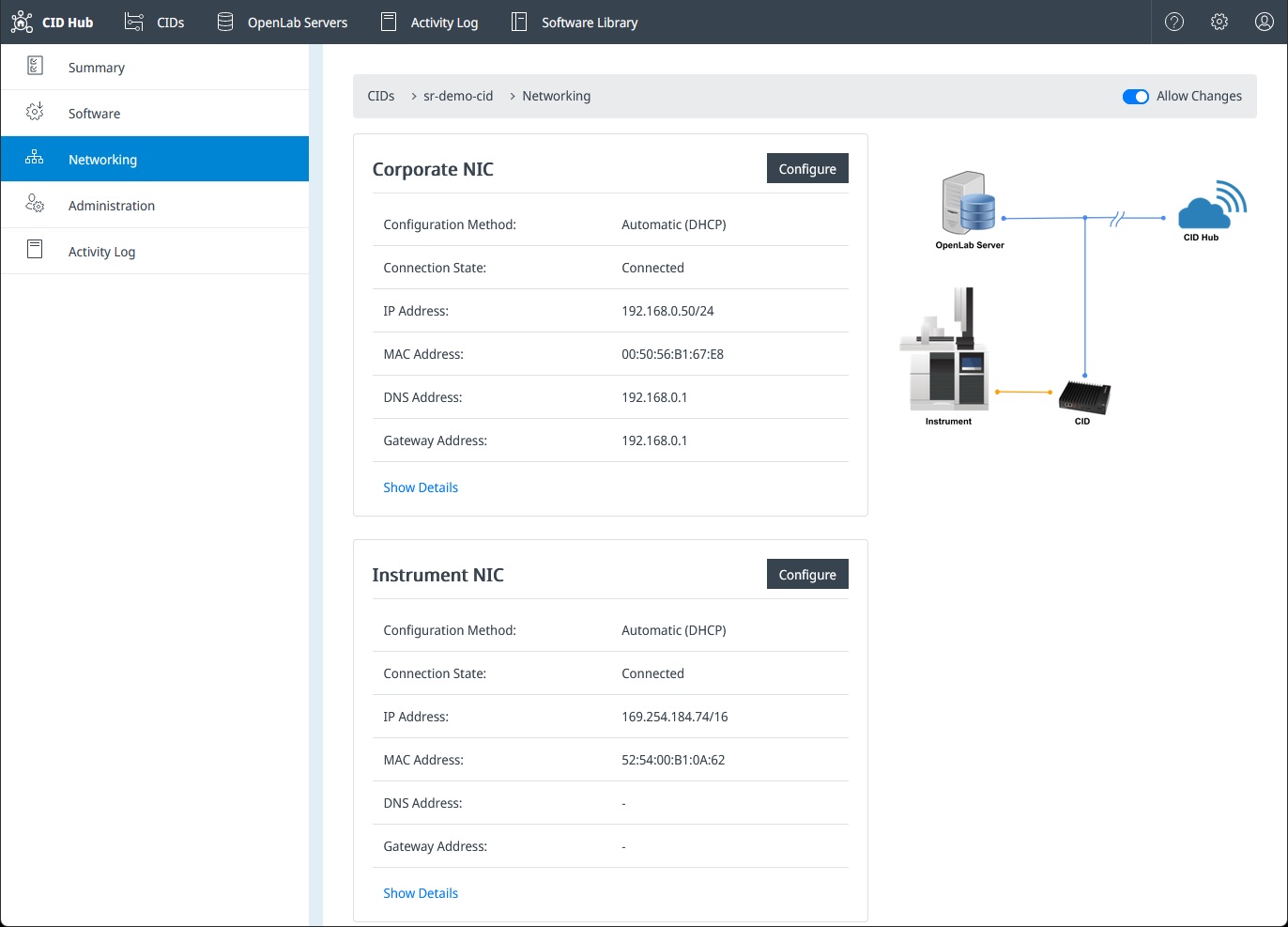
The page lists each NIC's configuration method (automatic or manual), connection state, IP address, MAC address, gateway, and DNS settings.
-
Click Show Details on a NIC to expand the underlying Linux interface information (connection name, UUID, device state, domain name).
-
Click Configure on a NIC to open its configuration dialog.
Configure the Corporate NIC
The Corporate NIC is the only network path between the CID and CID Hub. An incorrect change here can disconnect the CID from CID Hub.
The CID requires DHCP on the Corporate NIC to activate. You can switch to a manual configuration only after the CID has activated and is connected to CID Hub. Make sure DHCP is available on the corporate network during the initial activation, even if you intend to assign a static address afterward.
Once the CID has activated, you can edit the Corporate NIC, but be deliberate about the values you change.
Setting the wrong IP address, gateway, or DNS on the Corporate NIC can make the CID unreachable from CID Hub. CID Hub attempts to revert an unreachable configuration automatically, but the safety net cannot detect every misconfiguration. Coordinate Corporate NIC changes with your IT administrator.
To configure the Corporate NIC:
-
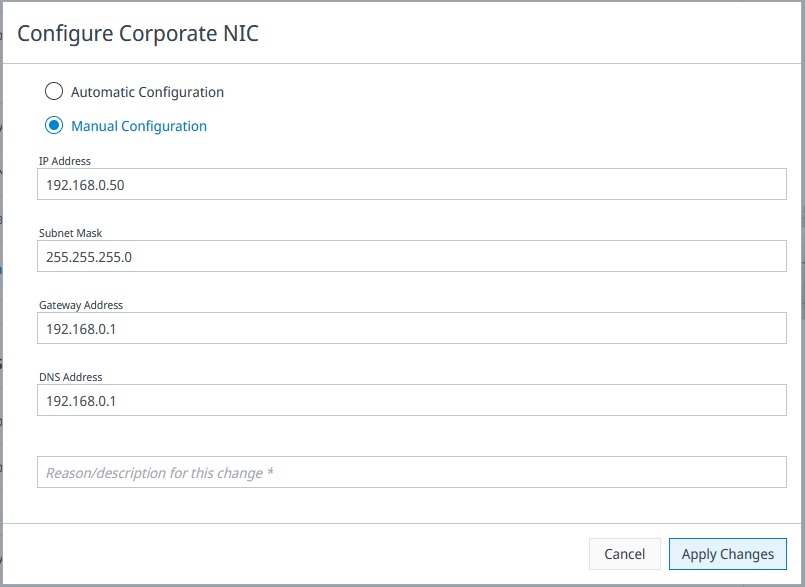
On the Networking tab, click Configure under Corporate NIC.
-
Select a configuration method:
- Automatic (DHCP). The CID obtains its IP address, subnet mask, gateway, and DNS settings from your corporate DHCP server. This is the default and is recommended for most environments.
- Manual. The CID uses the static values you supply. Use only when required by your IT policies.
-
For Manual, enter the network values:
- IP Address. The static IPv4 address, for example
192.168.0.75. - Subnet Mask. The dotted-quad subnet mask, for example
255.255.255.0. - Gateway Address. The default gateway on the corporate network.
- DNS Address. One or more DNS server addresses that can resolve the CID's own hostname and the OpenLab Server's fully qualified domain name (FQDN).
- IP Address. The static IPv4 address, for example
-
Enter a Reason / description for this change.
This is recorded in the Activity Log so the change can be traced later.
-
Click Apply Changes.
The CID applies the new configuration, then verifies it can still reach CID Hub. If the verification fails after 5 retries, the previous configuration is restored automatically and the failure is recorded in the Activity Log.
Configure the Instrument NIC
The Instrument NIC connects the CID to your instruments. Most lab setups connect instruments directly to this NIC and assign the CID and the instruments static IP addresses in the same subnet so they can communicate. Changes to this NIC do not affect the CID's connection to CID Hub.
To configure the Instrument NIC:
-
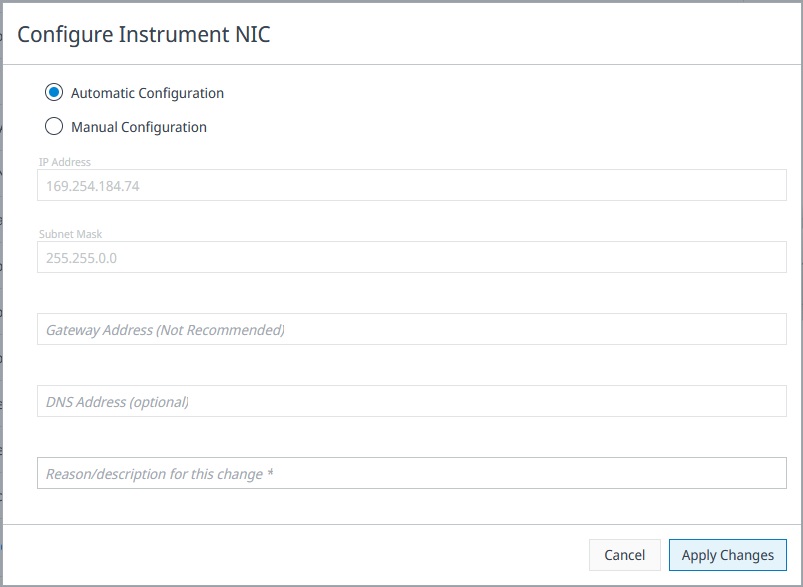
On the Networking tab, click Configure under Instrument NIC.
-
Select a configuration method:
- Manual. The CID uses the static values you supply. Recommended for most instrument connections so that the CID and the instruments share a known subnet.
- Automatic. The CID acquires an address from a DHCP server on the instrument network, or uses an Auto-IP address in the
169.254.x.xrange when no DHCP server is present. Use only when your instrument network already provides DHCP.
-
For Manual, enter the network values:
- IP Address. The static IPv4 address, in the same subnet as the connected instruments.
- Subnet Mask. The dotted-quad subnet mask, for example
255.255.255.0. - Gateway Address (not recommended). Leave blank. The instrument network is isolated from the corporate network. Setting a gateway here can route instrument traffic onto the corporate network, break the corporate default route, or leak instrument traffic across network boundaries.
- DNS Address (optional). Leave blank unless your instrument vendor specifies a DNS server.
-
Enter a Reason / description for this change.
-
Click Apply Changes.
Verify the configuration
After Apply Changes completes, the Networking tab refreshes with the new values. If the change failed and was reverted, the previous values are shown and the Activity Log records the failure with the reason you entered.
To confirm the CID is reachable on the new configuration, return to the CID's Summary page. The status should remain Ready.
See also
- Networking requirements: supported network speeds, DNS, and firewall port requirements.
- Supported topologies: how to wire the CID into your lab and instrument networks.
- Activate a CID: the activation flow that uses the Corporate NIC to contact CID Hub.
- View CIDs: monitor CID connectivity status after a network change.
- View activity logs: review the history of NIC configuration changes.