Manage users and roles
Use the Users page in CID Hub to invite people to your account, assign them a role, reset their password, and remove their access when they no longer need it. Roles, and what each one can do, are described in Role privileges.
Your account's first Administrator is created by Agilent when the account is provisioned. From that point on, Administrators in your account manage everyone else.
Welcome emails are sent from no-reply@hub.cid.agilent.com with subject Connected Instrument Device Hub for OpenLab CDS: Your Temporary Password. Ask your IT team to allow this sender so invitations and password-reset emails are not filtered out.
Prerequisites
- You must have the Administrator role to invite, edit, reset, or remove other users.
- You need each new user's full name and email address before you invite them.
Open the Users page
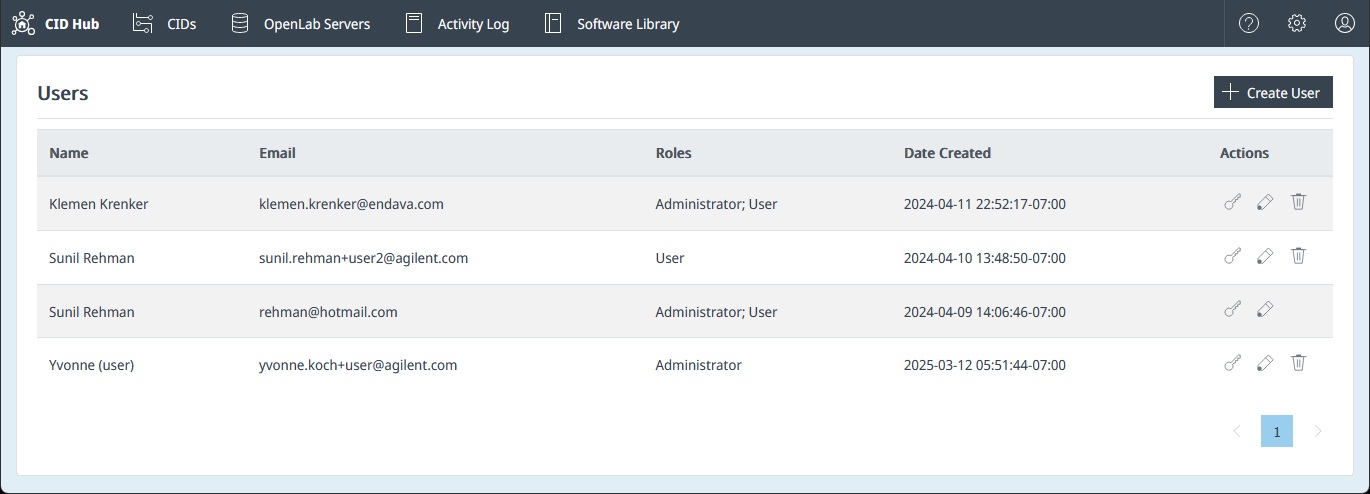
The Users page lists everyone in your account.
-
Click the Settings (gear) icon in the top-right corner of the top navigation bar.
-
Select Users.
The Users list opens. From here you can add, edit, reset, or remove users.
Role privileges
CID Hub defines two roles. A user can hold one role or both at once.
Administrator
Administrators have full control of the account:
- Register, edit, and remove OpenLab Servers.
- Define and update software templates for servers and CIDs.
- Add, edit, and remove CIDs.
- Configure CID network settings.
- Perform administrative actions on CIDs (for example, Reset OpenLab CDS, Reboot System).
- Manage other users (invite, change roles, remove).
- Edit account details.
User
The User role suits lab staff who operate CIDs day-to-day but should not change configuration:
- View CIDs and their status.
- View server configurations (read-only).
- Launch CDS Desktop on a CID.
- Grant or revoke remote access for support.
- Restart or shut down a CID.
Users cannot change software, modify networking, add or remove CIDs or servers, or manage other users.
Invite a user
Invite a new user by email and assign their initial roles.
-
On the Users page, click + Create User.
-
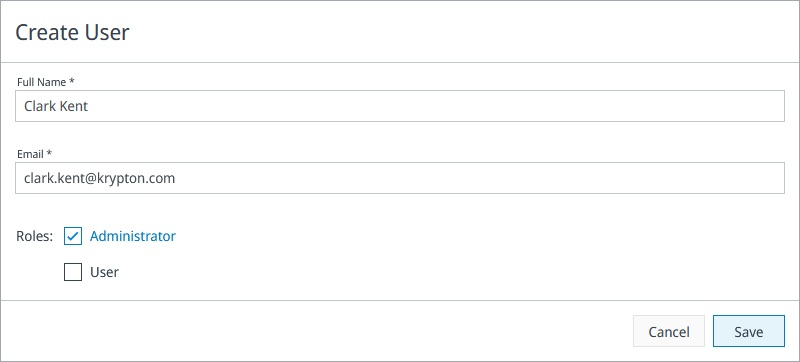
In the Create User dialog, enter the user's Full Name and Email.
-
Select one or both roles: Administrator, User.
-
Click Save.
The new user receives a welcome email at the address you entered, with a temporary password and a link to sign in.
Email addresses are case-insensitive. CID Hub converts the address to lowercase on entry, so Jane.Doe@example.com and jane.doe@example.com are treated as the same user.
Edit a user
You can change a user's full name or role assignment at any time. The email address is the account identifier and cannot be changed; if a user needs a different email, remove the account and invite them again.
- Find the user in the list.
- Click the Edit (pencil) icon in the Actions column.
- Update the Full Name or change which roles are selected.
- Click Save.
If you edit your own account, the page reloads so your session reflects the new role assignment.
Reset a user's password
If a user forgets their password or their temporary password expires before they sign in, send them a fresh reset email.
-
Find the user in the list.
-
Click the Reset Password (key) icon in the Actions column.
-
Confirm when prompted.
CID Hub emails the user a link to set a new password. The link works once and replaces any previous temporary password.
Remove a user
Removing a user revokes their access to your account.
- Find the user in the list.
- Click the Delete (trash can) icon in the Actions column.
- Confirm when prompted.
The user is removed from the directory immediately. If they have an active CID Hub session, it is terminated on the next backend authorization check (within about a minute), and any further requests are rejected.
You cannot remove your own account. Ask another Administrator to do it, or contact Agilent support if you are the only Administrator.
See also
- Manage account settings: change account details and contact information.
- View activity logs: review sign-in, sign-out, and user-management events.
- Security model: identity provider, supported sign-in methods, and the session-revocation model for removed users.